Watch and search
Watch a video and its transcript
The player, subtitles, the clickable transcript, translation and bookmarks.
Updated on
Any team member can watch the team's published videos, on a computer or a phone. They are all in My videos, and filed by team and folder under Folders in the sidebar.
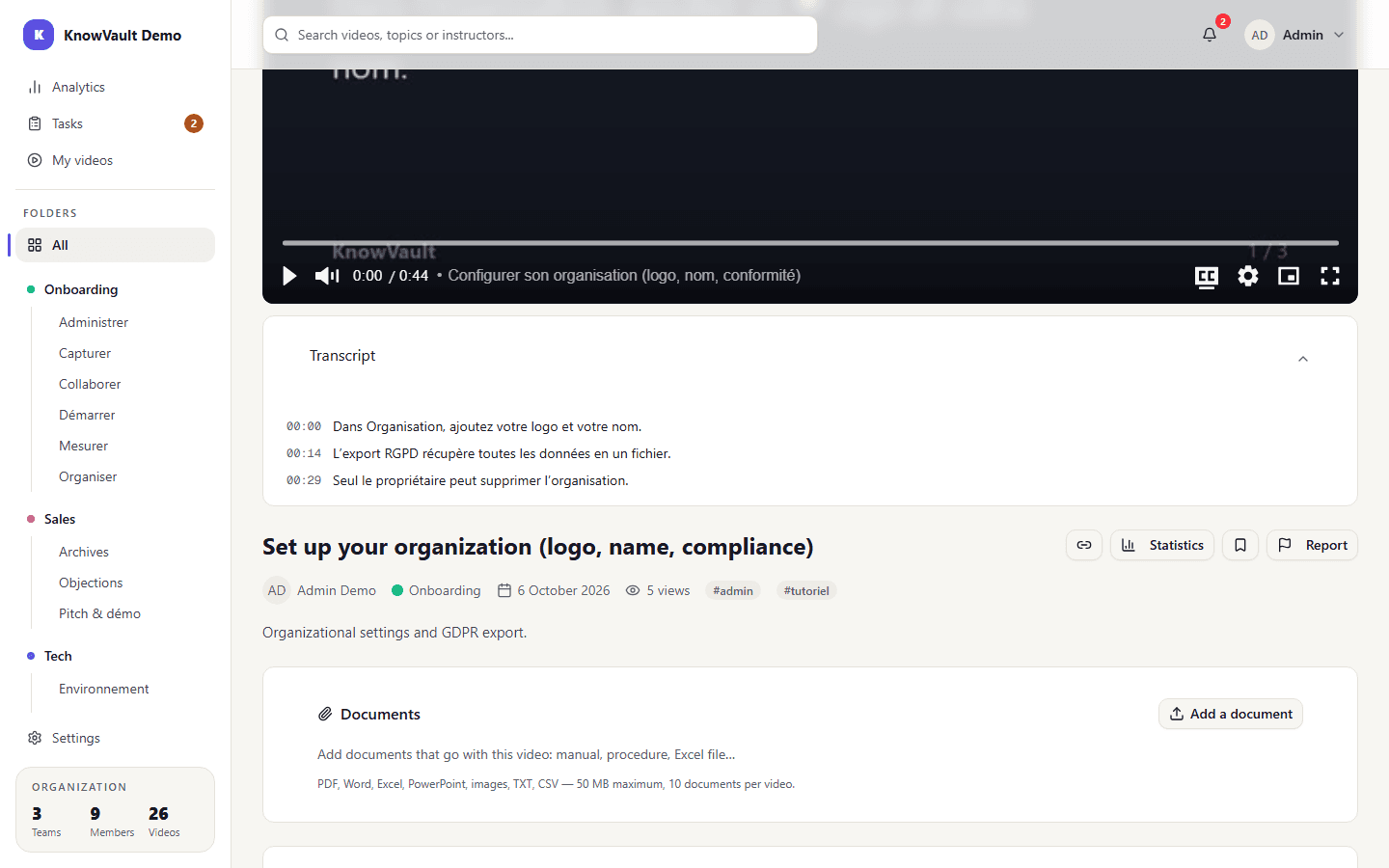
The player#
- Quality adapts automatically to your connection.
- The CC button turns subtitles on.
- The video can go full screen, or picture-in-picture so you can keep working alongside it.
The clickable transcript#
Below the video, expand the Transcript panel: everything that is said is written there. Click a sentence to jump straight to that moment, ideal for finding the step you need without rewatching everything.
In French or English#
The title, description and transcript are translated automatically. You read them in your interface language, set in Preferences (your account menu, top right).
Bookmarks and links#
To the right of the video title:
- the link icon copies the video's link so you can share it with a colleague;
- Statistics shows its viewing figures;
- the bookmark icon keeps it at hand: find it in the Bookmarks tab of My videos;
- Report alerts the team to a problem (see Report a video).
Good to know
A link doesn't grant access to the video: it only works for members of its team.
Attached documents#
The Documents section below the video holds the files that go with it: procedure, template, training material.
Your viewing is tracked#
KnowVault records the time watched; a video counts as fully watched at 90%. These figures feed the analytics. If a manager asked you to watch the video, mark the request as viewed in Tasks afterwards.