Getting started
Create a team
Teams decide who sees what in KnowVault. Create one per department or topic, with its own color, icon and privacy setting.
Updated on
Owners and administrators
A team is a sharing circle: its members see its videos, others don't. Teams usually map to a department or a topic, such as Support, Sales, Onboarding or Product.
Create the team#
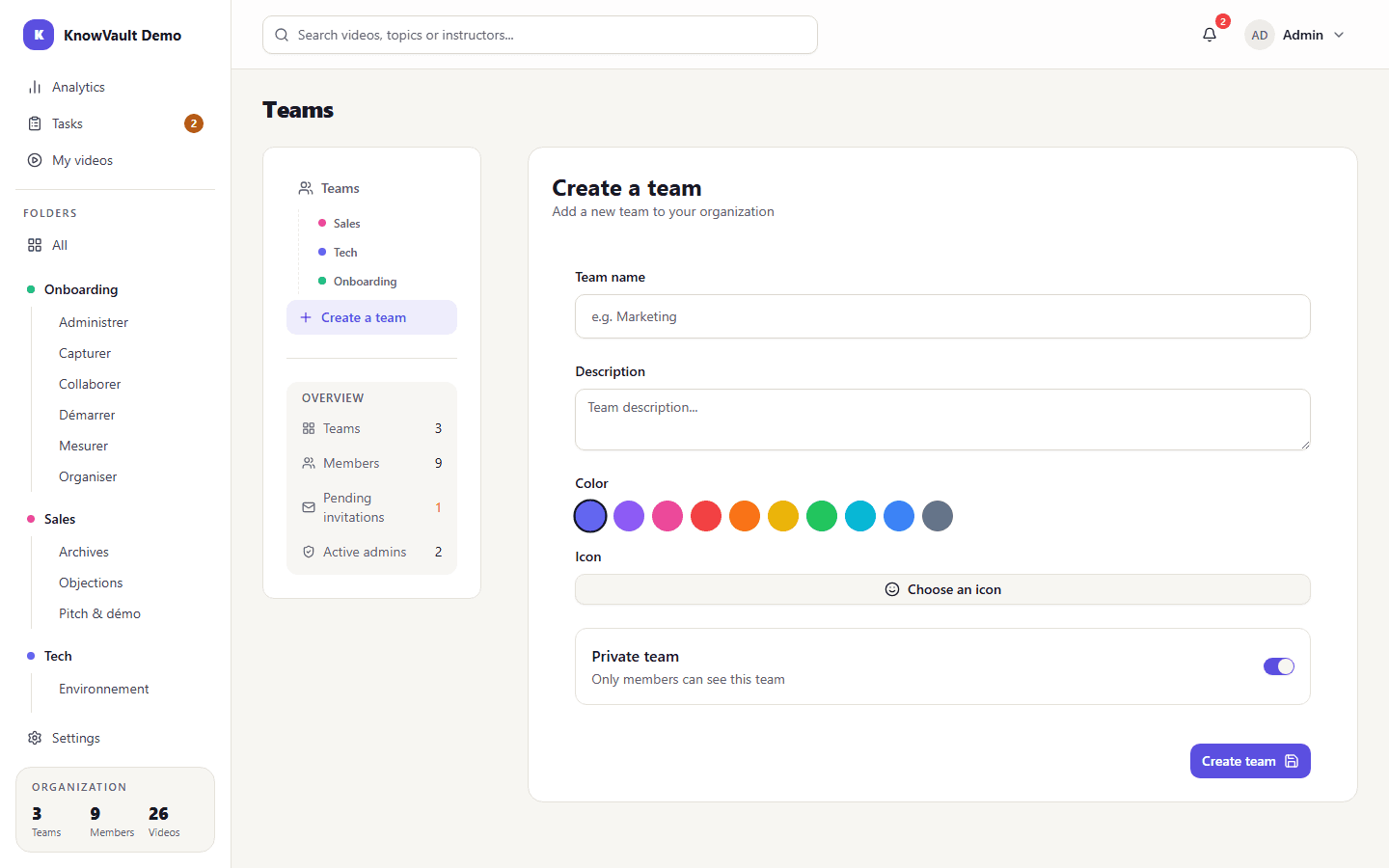
- Click your name in the top-right corner, then Teams. In the left menu, click Create a team.
- Give it a name (2 to 50 characters) and, if you like, a description.
- Pick a color and an icon: they make the team easy to recognize everywhere in the app.
- Leave Private team on so that only its members can see it.
- Click Create team: you land on its page.
Tip
Start small: one or two pilot teams, each with a motivated expert. Add the others once the first videos have won people over.
Edit or delete a team#
On the team page, the settings icon (the gear) lets you change the name, description, color, icon and privacy. Deleting a team also deletes its folders and videos, so it asks for confirmation.