Create content
Record your screen
Record your screen, your voice and your computer's sound right in the browser, with nothing to install.
Updated on
Contributors, managers and administrators
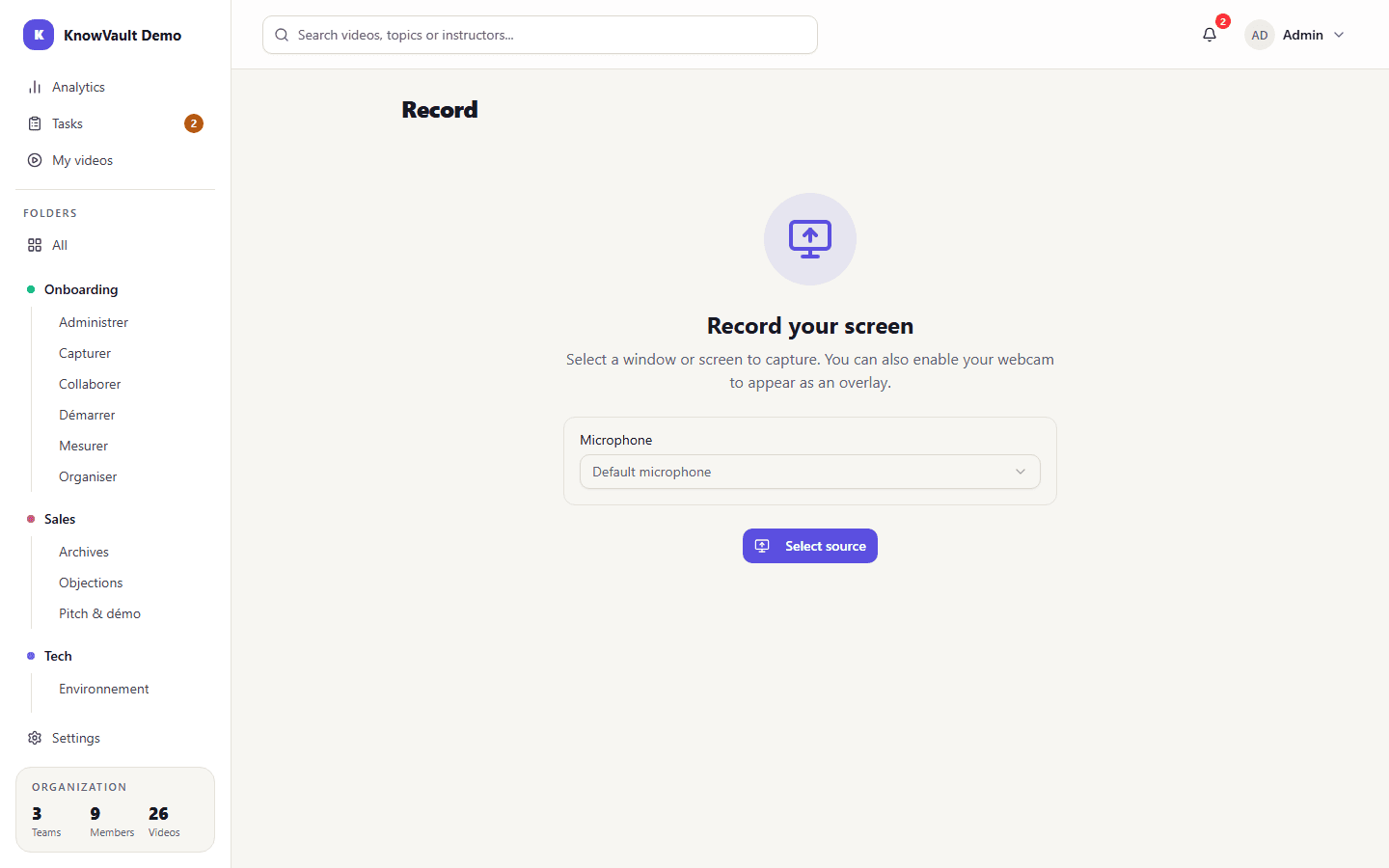
The KnowVault recorder captures your screen with your voice, and your computer's sound if you want. No software to install: everything happens in the browser.
Record#
- Open My videos, click Add a video, then Record screen.
- Allow microphone access if the browser asks, then choose your microphone. You can also continue without one.
- Click Select source, then choose what to share: the entire screen, a window or a tab.
- Explain as if a colleague were sitting next to you. Use Pause and Resume as often as you need.
- Click Stop, then review the recording. Not happy with it? Start over.
- Give it a title and a description, choose the team, folder and tags, then upload.
The video goes into processing, and you are notified when it is ready. See Drafts and publishing.
Computer sound
To record the sound of an application or a video, tick audio sharing in the screen selection window. Google Chrome and Microsoft Edge support it.
On a phone#
Screen recording requires a computer. On a phone, Add a video lets you film with the camera or choose a file.
Tips for a good video#
- One video, one question. Aim for 2 to 5 minutes; the limit is 15 minutes.
- Close distractions: notifications, personal tabs, sensitive information on screen.
- State the goal in the first sentence: "I'll show you how to issue a credit note."
- Speak naturally: the transcript makes every word searchable.