Keep content up to date
Request a revision
Turn a report into a task: updating or deleting a video, assigned to a team member.
Updated on
Team managers and administrators
A revision request hands a specific person the job of fixing a reported video: updating it or deleting it. It always starts from a report.
Create the request#
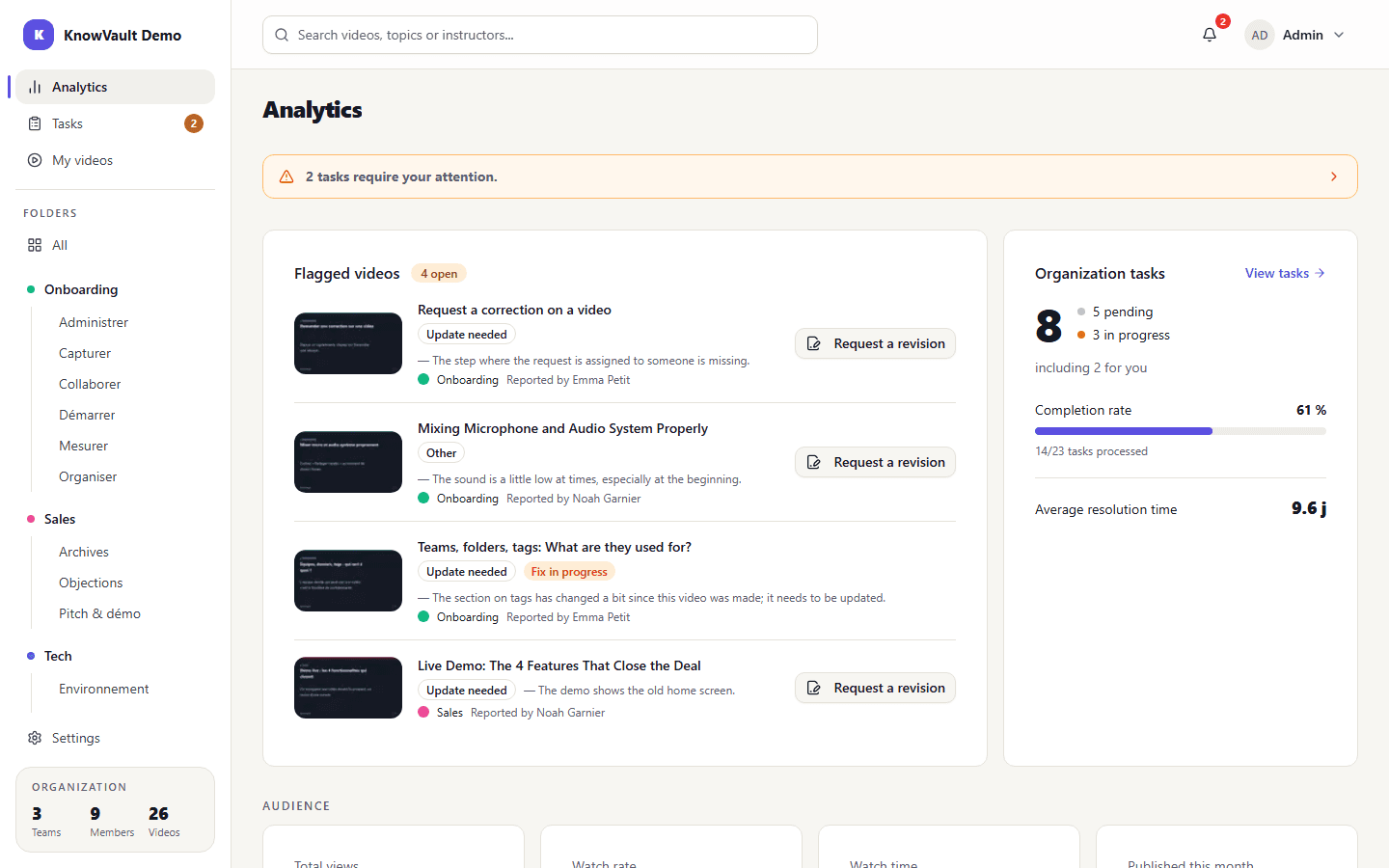
- Open the report: in the list of reports below the video, or from Flagged videos on the Analytics page.
- Click Request a revision.
- Choose the action: Update or Delete.
- Assign the request to a team member, usually the author.
- Add a comment explaining what needs to change, then send.
The assignee is notified and finds the request in Tasks, among the Fix requests.
Good to know
While the request is open, the assignee can edit or delete the video, even if they are not its author.
Handle the request#
The assignee accepts the task, updates the video (new recording, title, transcript, documents) or deletes it, then clicks Mark done. The requester follows progress on the task board and can talk it through in the request's comment thread.