Getting started
Invite people into the circle
Invite your colleagues into a team with the right role: viewer, contributor or manager.
Updated on
Team managers and administrators
Each invitation brings someone into a team, with a role. Viewers are free and unlimited: invite everyone who needs to learn, and give the contributor role to those who share their know-how.
Invite by email#
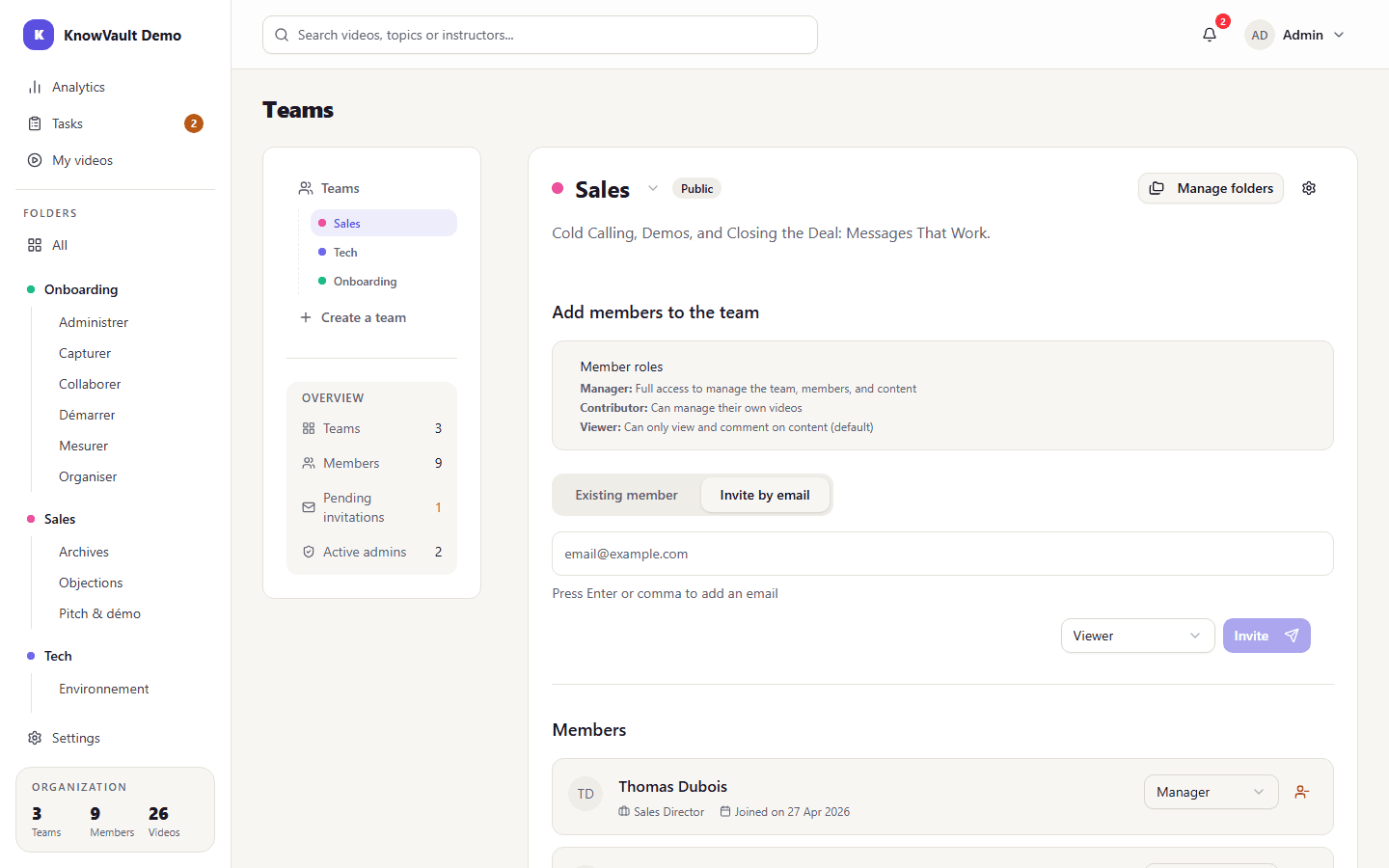
- Open the team (account menu, Teams, then the team's name).
- In Add members to the team, choose the Invite by email tab.
- Enter one or more addresses, pressing Enter or typing a comma after each one.
- Choose the role: Viewer (default), Contributor or Manager.
- Click Invite: each invitee receives an email.
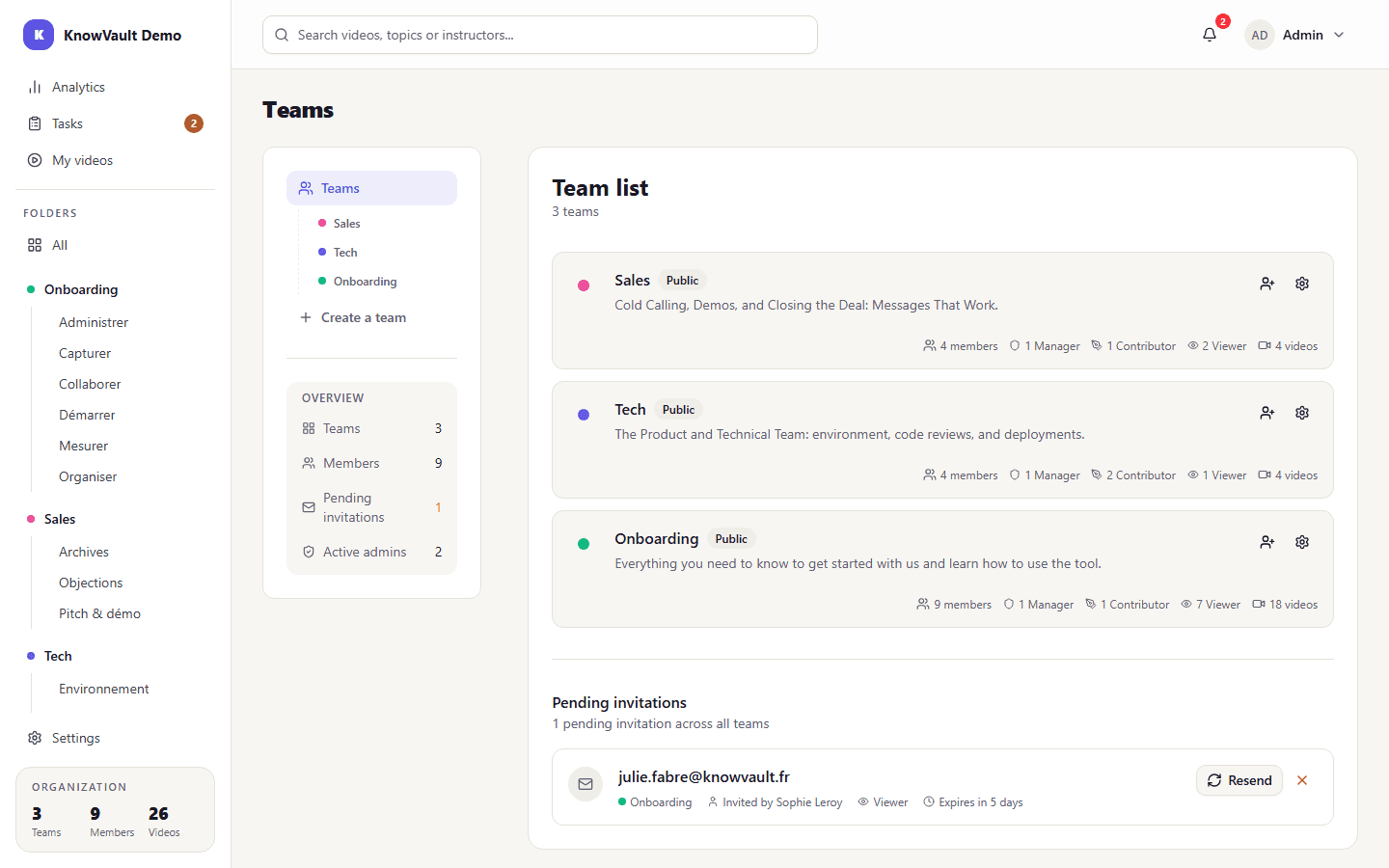
The invitee clicks the link, sets a password and lands directly in the team. The invitation is valid for 7 days. The Teams page lists Pending invitations: you can Resend or cancel them.
Add a colleague who already has an account#
Someone who is already part of the organization doesn't need an invitation: in Add members to the team, Existing member tab, search for them and add them directly.
Choose the right role#
| Role | For whom | What it allows |
|---|---|---|
| Viewer | People who learn | Watch, search, comment, report |
| Contributor | Experts who share their know-how | Everything a viewer does, plus record and publish their own videos |
| Manager | The team lead | Everything, plus manage members, folders and requests |
The full details are in Roles and permissions.
Change a role or remove a member#
In the team's Members list, change someone's role with the selector to the right of their name, or remove them with the icon next to it.
Good to know
A team always keeps at least one manager. On the Starter plan, the organization has at most 3 contributors, pending invitations included.