Keep content up to date
Track your tasks
The task board brings together your teams' content, fix and viewing requests.
Updated on
Content, fix and viewing requests all land in the Tasks menu, as a board. A counter in the sidebar shows how many are waiting for you.
The task board#
Each request is a card, placed in a column according to its progress:
| Column | Meaning |
|---|---|
| Pending | The request has just been created, nobody has picked it up yet |
| In Progress | The assignee has accepted it and is working on it |
| Done | The work is finished |
| Archived | The request is filed away (shown with Show archived) |
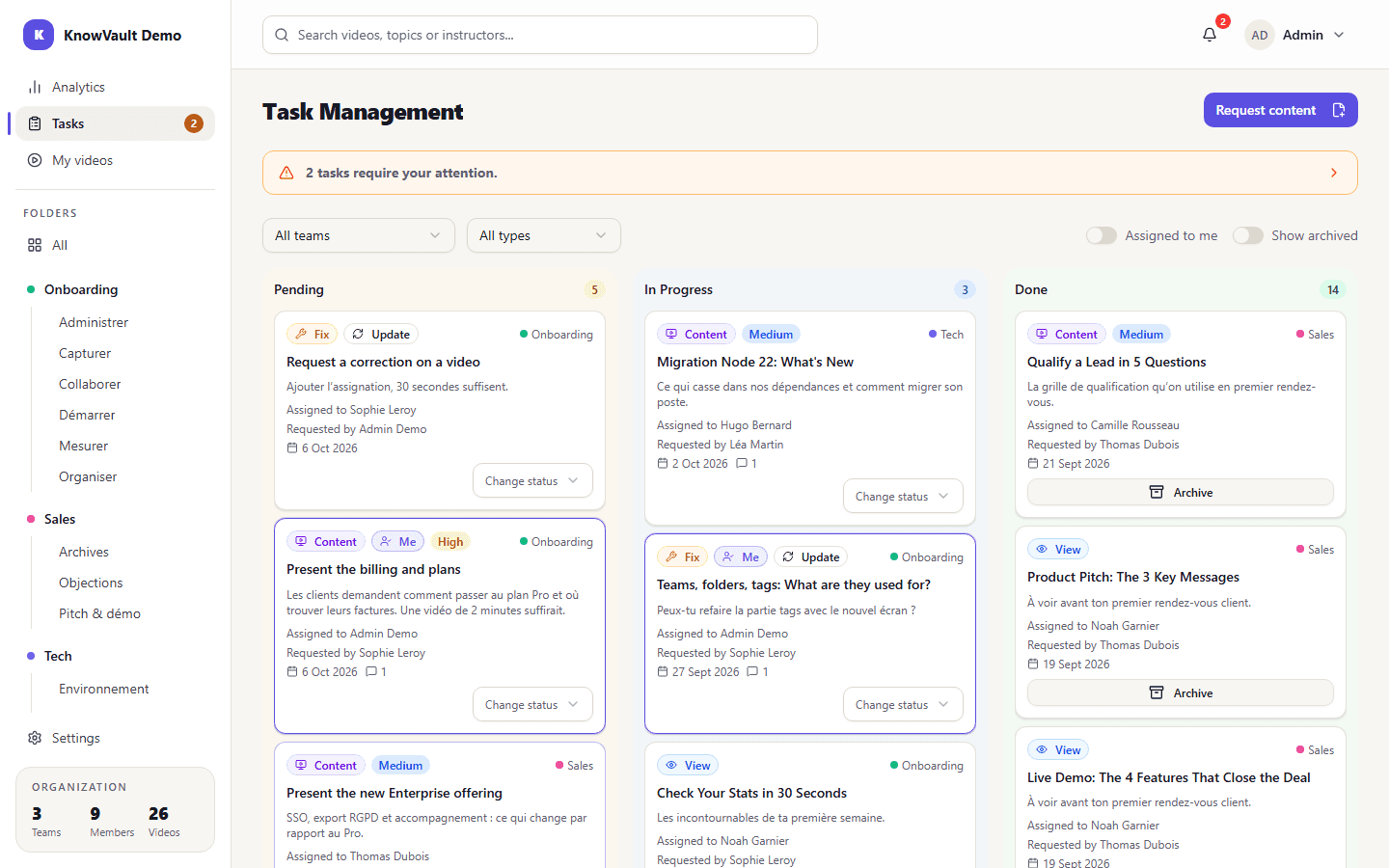
Each member sees the requests of their teams. Filter by team, by type (Content, Fix, View), or keep only the ones Assigned to me.
Handle a task#
- Open the card: it shows the video or subject, the requester and the due date.
- Click Accept (in the details, or through Change status on the card): it moves to In Progress.
- Talk it through in the request's comment thread if needed.
- Do the work: create the video, update it, delete it or watch it.
- Click Mark done.
A finished card can then be filed away with Archive.
Create a request#
Team managers and administrators
The Request content button sits at the top of the board. Fix and viewing requests are created from the video concerned: see Request a revision and Request a viewing.
On the Analytics page#
My tasks and My sent tasks sum up what is waiting for you and what you have asked for. The history is in Completed tasks and Archives.